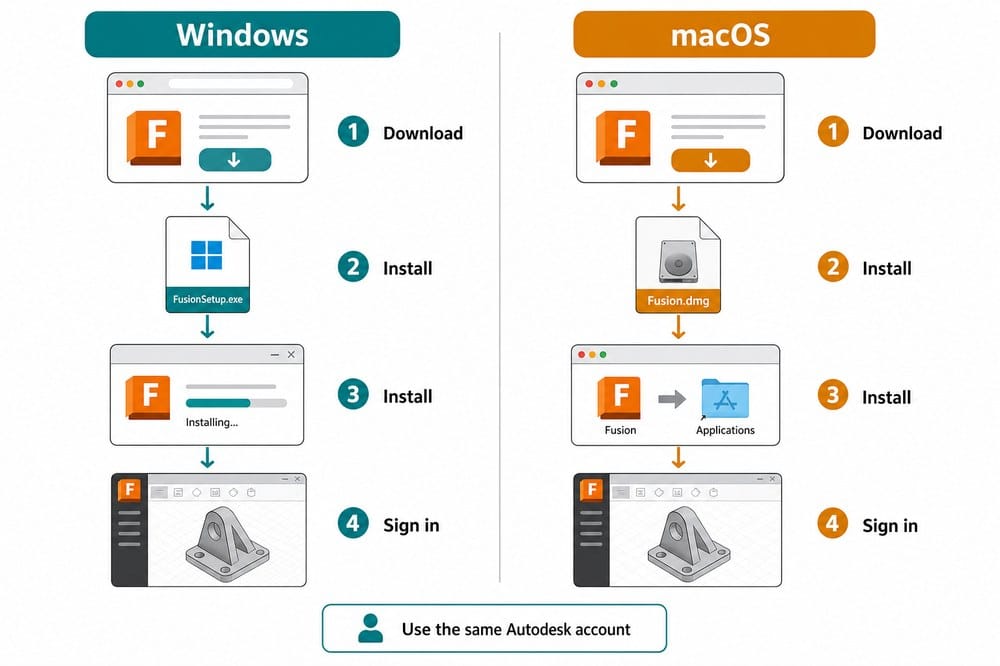
Start with Autodesk's current requirements, then download the package for the computer being used.
Check that the Windows or macOS version is supported and that the computer has enough free storage.
Use the Windows installer on a Windows computer. On macOS, use the package offered for the Mac and complete the normal Applications installation.
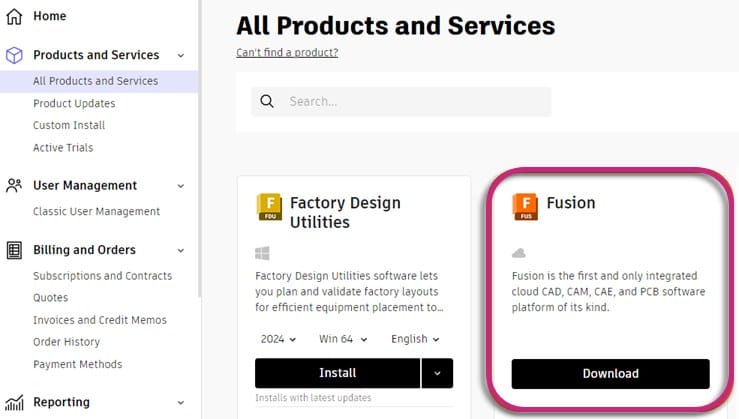
Autodesk account navigation shown in Autodesk Fusion Help.
Step 2
Find Fusion in Autodesk Account
The download control appears after Fusion has been assigned to the signed-in account.
Open Autodesk Account, then go to Products and Services > All Products and Services.
Find Fusion and select Download. If Fusion is missing, check that the entitlement belongs to the email address currently signed in.
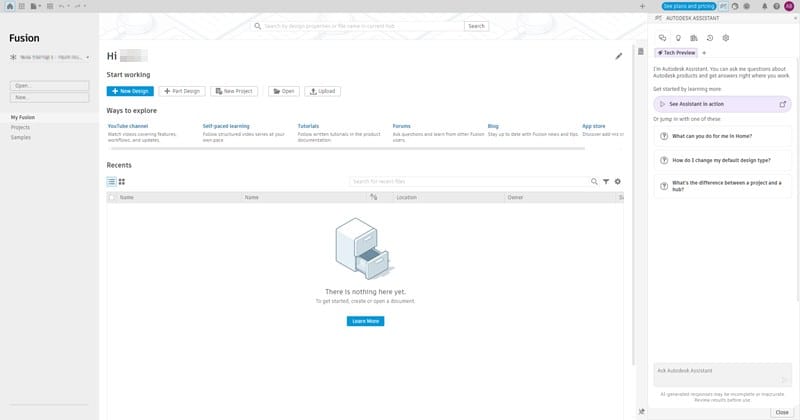
Fusion home workspace shown in Autodesk Fusion Help.
Step 3
Confirm that Fusion opens correctly
A successful installation opens the Fusion home workspace after account sign-in.
Launch Fusion and sign in with the same Autodesk account used for the download or licence.
Open Help > About if the access type needs to be checked before course or project work.
Things to check
Use an individual installer for a personal computer. Schools deploying Fusion across shared lab computers should use Autodesk's educational institution deployment instructions.
Reinstalling does not require a second Autodesk account. Existing projects remain tied to the original account.
Fusion updates frequently and uses cloud services, so keep both the application and operating system supported.
Sources
Official downloads and instructions
Download pages and eligibility rules can change. Use these official links for the current package and requirements.