Group 7: compare your two ideas
Choose one difficulty to help with. Compare both ideas, make one useful change and explain a fair test. The model examples show design proposals, not equipment proven to work.
Idea 1: Which bin quiz
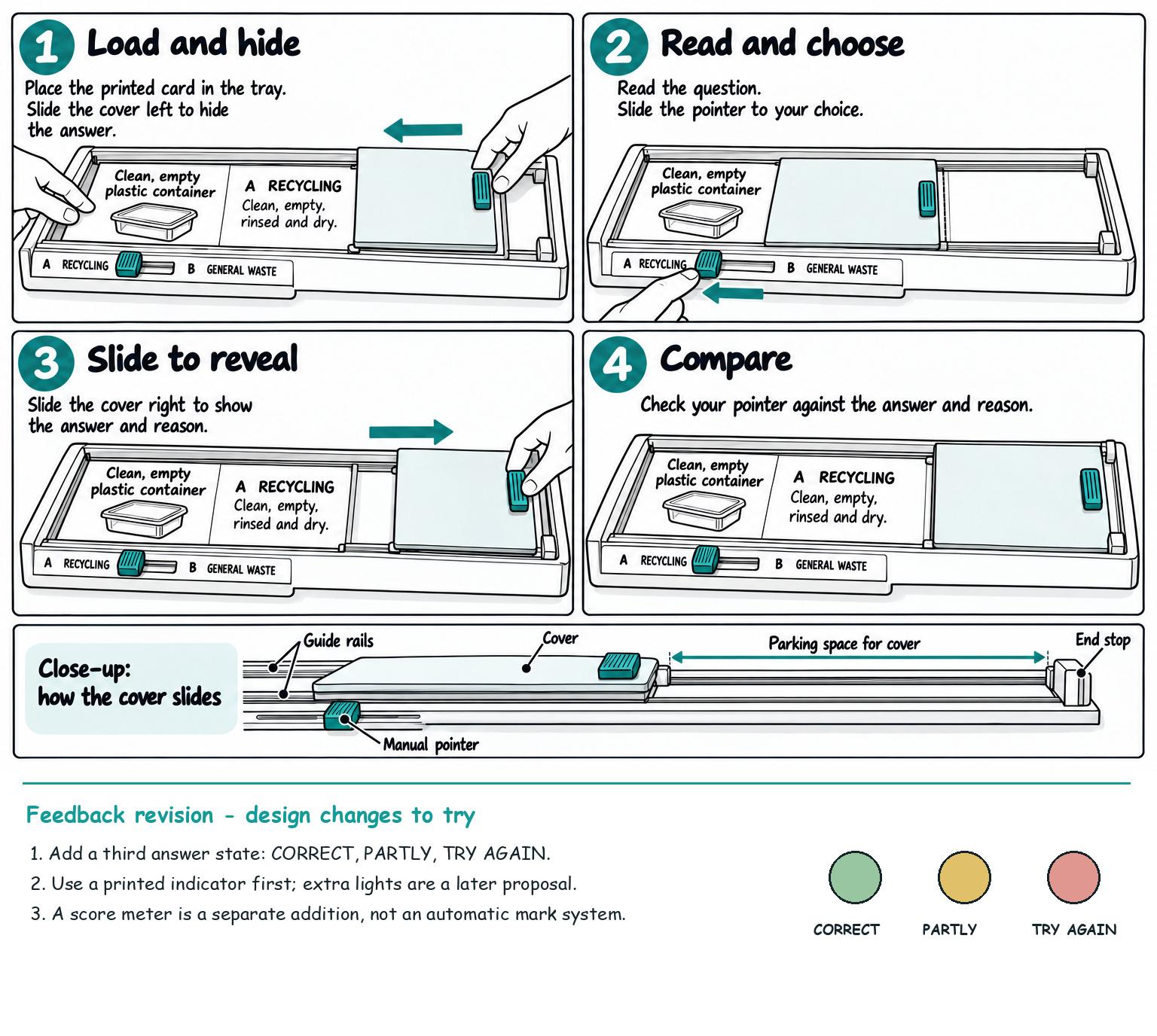
Who it could help: People learning to sort waste
The problem
People may be unsure whether an item belongs in recycling or general waste.
Why it matters
Showing the reason helps learners check their answer and use the rule again.
The idea
A manual quiz with one question-and-answer card, an A/B pointer and a sliding answer cover.
How it works
- Insert one card and hide the answer.
- Read the question. Choose A or B.
- Slide the cover right.
- Compare your choice with the printed answer.
What to find out
Does the card use the correct local recycling rules?
Ask someone new to set up, play and reset.
Feedback revision: changes to try
- Add a third answer state: CORRECT, PARTLY, TRY AGAIN.
- Use a printed indicator first; extra lights are a later proposal.
- A score meter is a separate addition, not an automatic mark system.
Earlier drawing is preserved
Compare the revision with the original before building.
Open the earlier illustration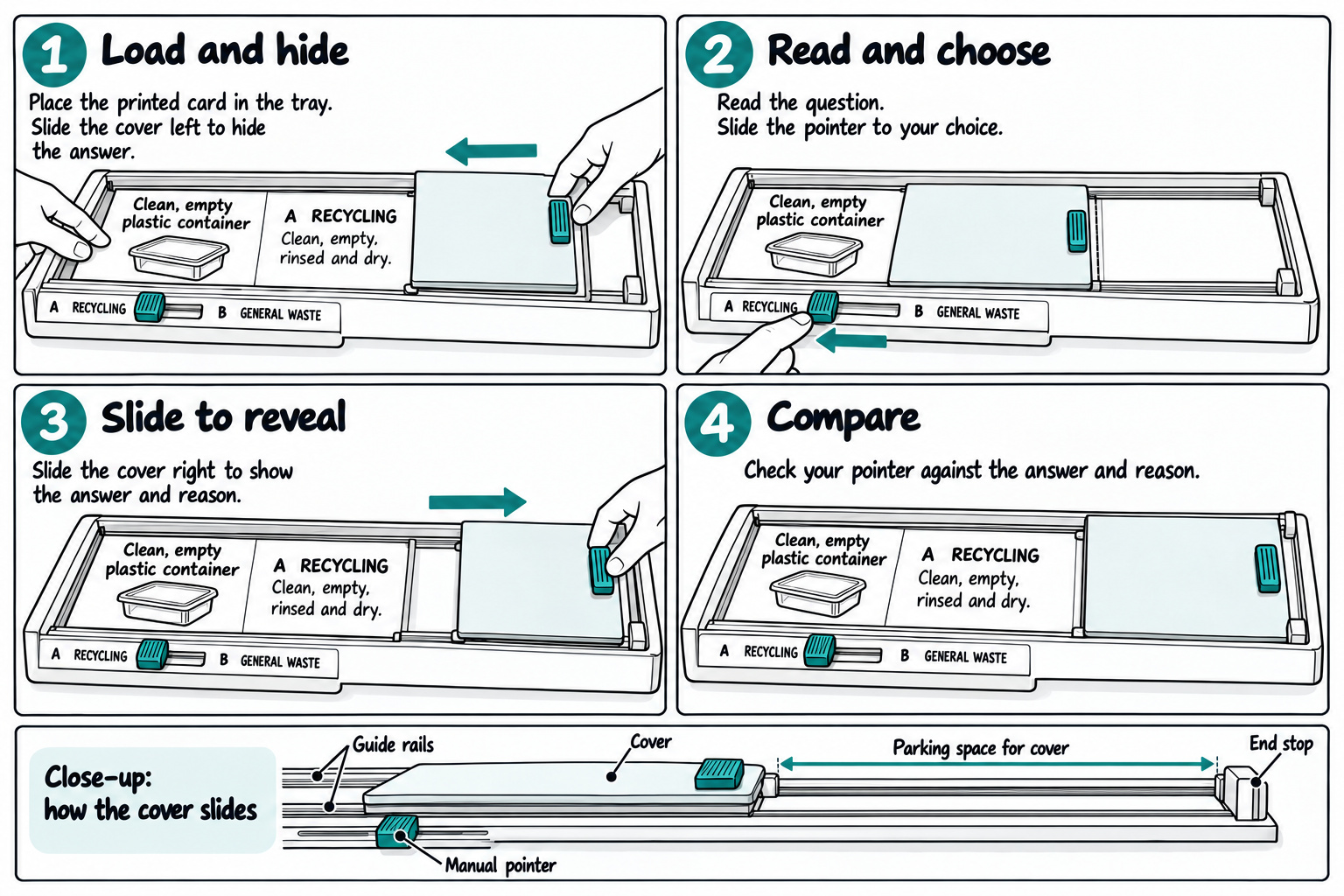
2D drawing and Tinkercad instructions
Read the current drawing, label one change, and keep the original. In your drawing workspace, use the illustration as a fixed reference and add editable marks over it. Save the draft, then submit the drawing separately from your written answers.
Build a 3D concept with your teacher
- Use a box for the quiz body and a separate sliding answer card.
- Add three labelled printed indicator positions: CORRECT, PARTLY, TRY AGAIN.
- Keep the score meter separate and check slide travel with measured clearance.
Use your assigned Tinkercad workspace. Verify the group, idea and units before opening an existing project. Duplicate it before changing it. Measure supplied parts and ask your teacher to check fit before printing. These instructions do not edit or connect to Tinkercad.
The prompts below contain the public design description only. They are not sent anywhere by FIT. A teacher or adult conducts the ChatGPT conversation and reviews any generated drawing or instructions. Keep pupil details and private submissions out of the prompt.
2D drawing prompt
Tinkercad instructions prompt
Idea 2: Camera assisted bin feedback
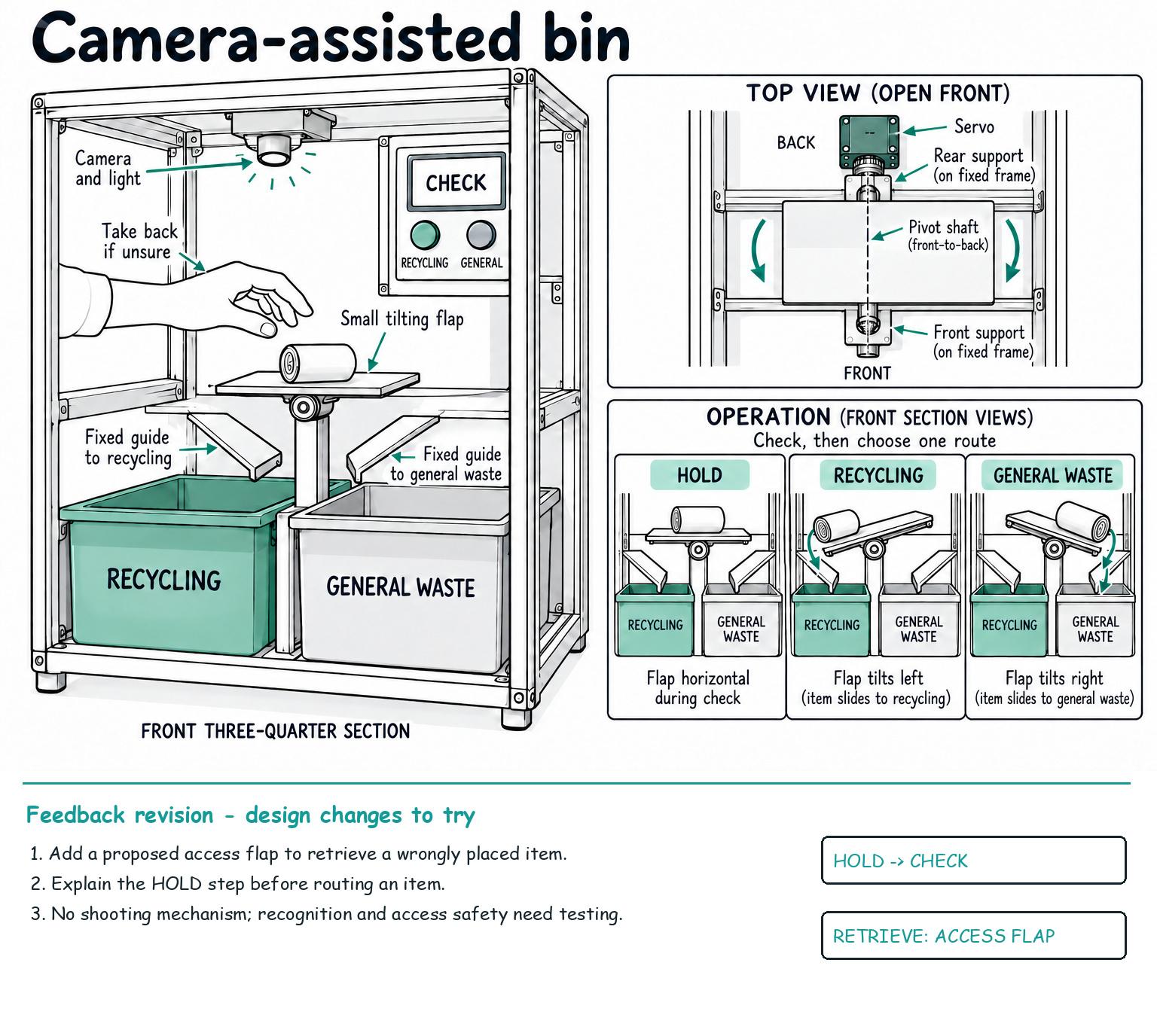
Who it could help: People using recycling and general-waste bins
The problem
Putting the wrong item in a recycling bin can spoil the recycling.
Why it matters
People need a way to take an item back when the system is unsure.
The idea
A camera check area with one small flap that tips towards recycling or general waste.
How it works
- Place one item on the flap.
- Check the result and confirm the route.
- The flap tips towards the chosen bin.
What to find out
Can someone take an unclear item back safely?
Test unknown items, moving gaps and jams with clean samples.
Feedback revision: changes to try
- Add a proposed access flap to retrieve a wrongly placed item.
- Explain the HOLD step before routing an item.
- No shooting mechanism; recognition and access safety need testing.
Earlier drawing is preserved
Compare the revision with the original before building.
Open the earlier illustration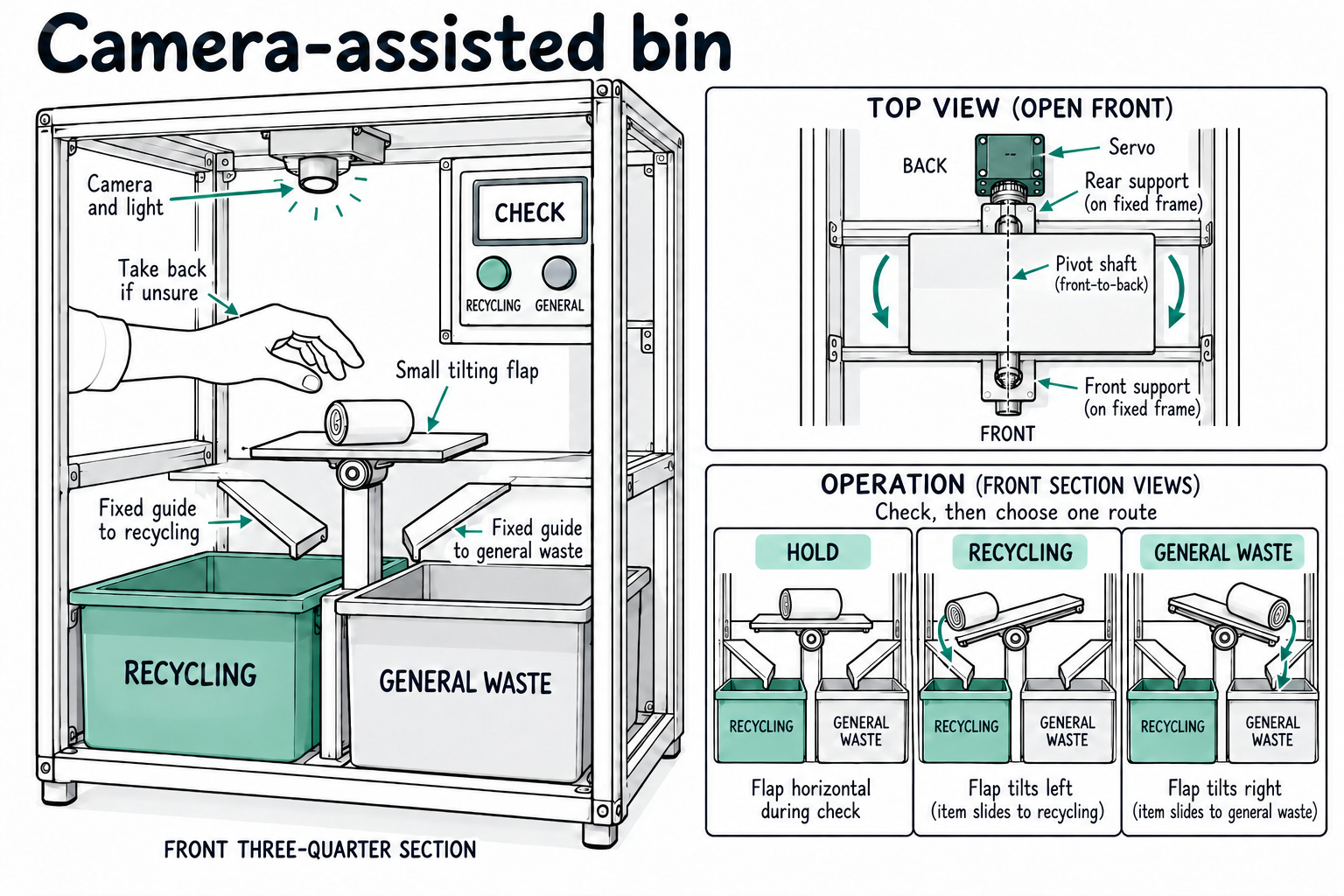
2D drawing and Tinkercad instructions
Read the current drawing, label one change, and keep the original. In your drawing workspace, use the illustration as a fixed reference and add editable marks over it. Save the draft, then submit the drawing separately from your written answers.
Build a 3D concept with your teacher
- Use boxes for HOLD, recycling and general-waste spaces.
- Make the proposed retrieval flap a separate part with a handle.
- Keep camera and recognition controls as labelled placeholders; check access with harmless sample items.
Use your assigned Tinkercad workspace. Verify the group, idea and units before opening an existing project. Duplicate it before changing it. Measure supplied parts and ask your teacher to check fit before printing. These instructions do not edit or connect to Tinkercad.
The prompts below contain the public design description only. They are not sent anywhere by FIT. A teacher or adult conducts the ChatGPT conversation and reviews any generated drawing or instructions. Keep pupil details and private submissions out of the prompt.
2D drawing prompt
Tinkercad instructions prompt
Your three activities
Activity 1
Improve the problem
Name a person, one difficult step and the evidence we need.
- Read the problem statement and the suggested wording.
- Ask which item or condition confuses people at the actual bin.
- Choose one difficult step. Complete your own improved statement.
Check: Name who needs help, what is difficult and what you still need to test.
Activity 2
Make the idea work
Show a useful change and explain how the parts connect.
- Show the same-item card and two condition positions.
- Use separate arrows for changing condition and revealing the reason.
- Mark where the sliders stop so they stay in their rails.
Check: The drawing shows an input, movement or action, and a result. It distinguishes the printed structure from supplied equipment.
Activity 3
Test and explain
Compare fairly and explain what the result means.
- Use this comparison: Ordinary recycling rule cards with the same information.
- After trying each method, use five new teacher-approved examples. Ask for the action and the reason, not only a score.
- Record what happened, or write the test plan if the equipment is not available. Explain one next change.
Check: The moving parts complete ten manual cycles without leaving their guides. Keep the extra mechanism only if it improves explanation or use compared with plain cards.
Start your shape model
- Choose one reviewed idea and sketch its main parts.
- In Tinkercad, use boxes or cylinders for the structure. Set the sizes from measurements and label supplied equipment separately.
- Show one useful change, check how parts would connect and save a screenshot of your model for your teacher.
Use your teacher’s assigned workspace. Do not enter class joining details or account information in your answers. Ask your teacher before printing, powering or physically testing equipment.
Optional presentation preparation (saved only on this browser)
Your group’s answers
Use group numbers only. Do not enter names, emails, logins or private class links. Answers stay in this browser, on this device. They are not sent to FIT or a teacher. Download or print a copy to share with your teacher. On a shared device, clear this group after keeping your copy.
Group 7 answers
Chosen idea: Not chosen
- The person and place
- Not answered
- The difficult step
- Not answered
- What we know or need to find out
- Not answered
- Our improved problem statement
- Not answered
- One change we choose and why
- Not answered
- Printed parts and parts we need to supply
- Not answered
- What we compare and keep the same
- Not answered
- Our result or planned measurement
- Not answered
- Our next change and reason
- Not answered
- Our main message for the presentation
- Not answered
Loading your saved answers.