Fusion Education Access
By Fix It Today, 15/07/2026 · 2 min read
Software setup
Fusion Education Access
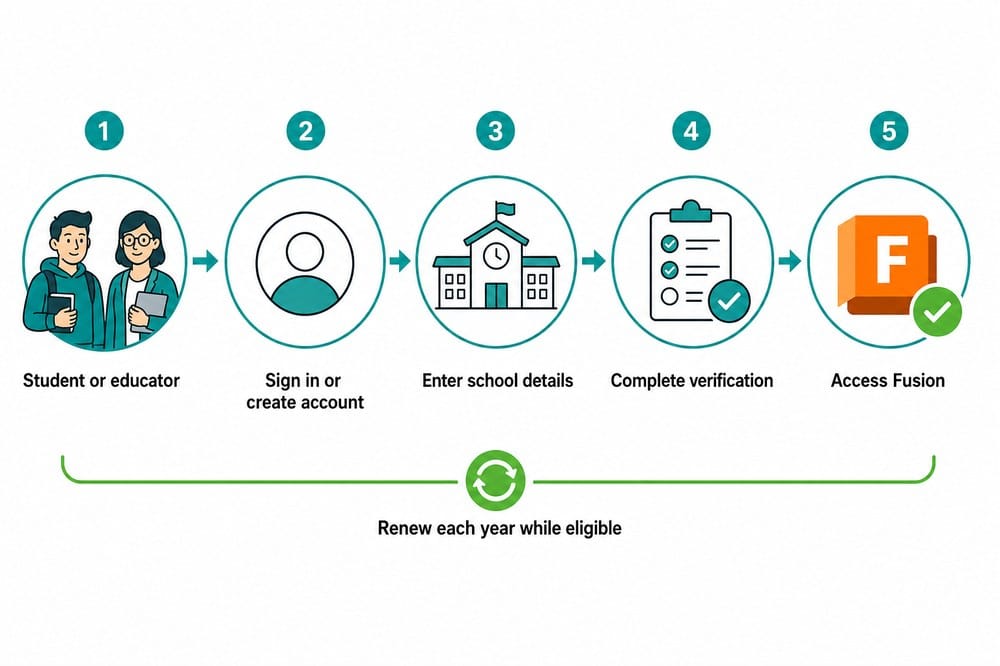
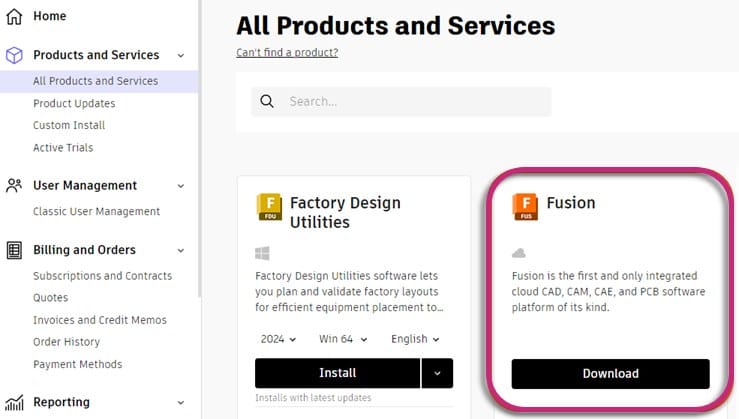
Confirm student or educator eligibility, activate Fusion education access, then install and sign in with the verified Autodesk account.
Things to check
Sources
Official downloads and instructions
Download pages and eligibility rules can change. Use these official links for the current package and requirements.
Autodesk Education software overview
Fusion cup holder workshop (MIC 2026 Workshop 3)
Fusion cup holder modelling steps
Fusion static stress workshop steps
Fusion thermal workshop steps
Fusion 3MF export and slicing steps
Confirm education eligibility
Download education products
Fusion education and personal licence routes
Related articles

The Story of the 3D Printer: From RepRap to Bambu Lab
How the desktop 3D printer happened, in order: the patents, RepRap at the University of Bath, MakerBot, the Prusa i3, Creality's Ender-3, Prusa Research and Bambu Lab, with photographs of each machine.

Building More With Tinkercad: A Storage Box With a Lid
A more advanced Tinkercad project than a keychain: a hollow storage box and a separate lid, built with a Hole shape, Align on all three axes, a Union group and a raised label. Part 4 of the series.

The Tinkercad Toolbox: Every Tool, What It Does
Every Tinkercad tool explained: the full shape library, Align, Mirror, Group and Ungroup, the Workplane tool, Colour, Snap Grid, and Import and Export. Part 3 of the series.